📖 Guide
Where is my
Kinguin Order ID?
Your Order ID is required to submit a pickup request. There are two ways to find it — choose whichever is easier for you.
METHOD 1
🔔 Bell notification
Fastest — click the bell after purchase
METHOD 2
📦 Inventory
Find any past order anytime
1
Click the bell icon after purchase
After completing your order on Kinguin, click the bell icon 🔔 in the top right corner. A notification will appear.
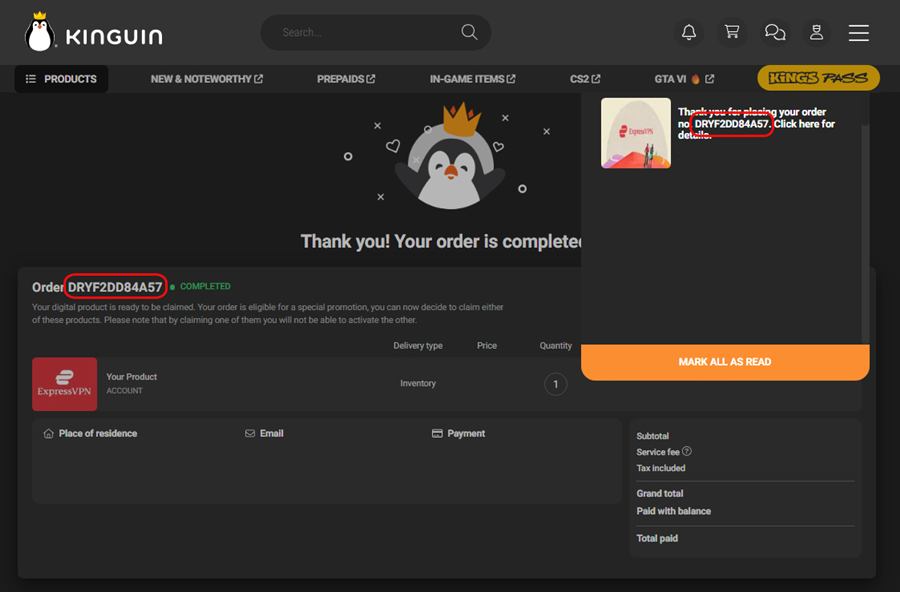
Bell notification with Order ID highlighted
2
Copy the Order ID from the notification
The notification shows: "Thank you for placing your order no. XXXXXXXXXXXX" — that number is your Order ID.
Example: Your Order ID looks like this: DRYF2DD84A57 — a mix of letters and numbers, always 12 characters long.
1
Open the menu and go to Inventory, then click "Show key"
Click the hamburger menu ☰ or your profile icon in the top right corner, select Inventory, then click Show key on your product card.
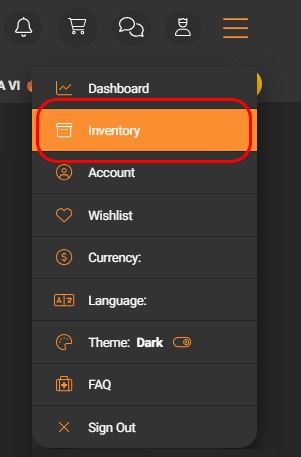
Select Inventory from menu

Click "Show key" on your product
3
Copy the Order ID from the popup
A popup will appear titled "View Your Product". Your Order ID is shown right below the product name.
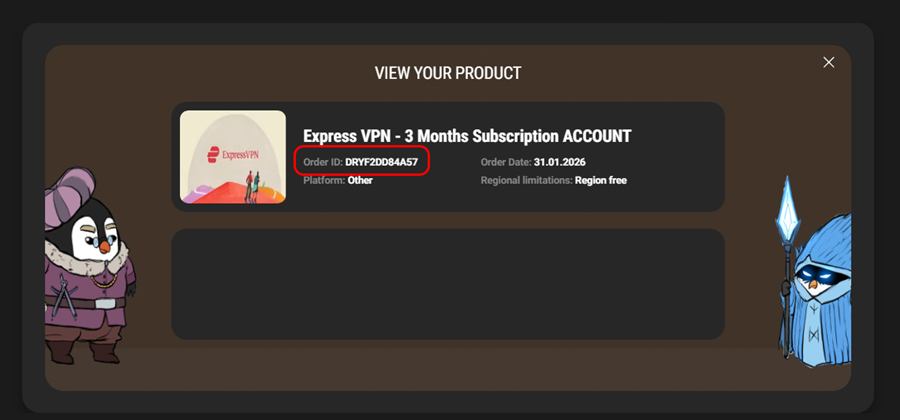
"View Your Product" popup — Order ID highlighted
Example: Your Order ID looks like this: DRYF2DD84A57 — a mix of letters and numbers, always 12 characters long.
Got your Order ID? Submit your request
Go back to the pickup page, enter your activation key and Order ID to receive your account credentials.
Submit Request →